
Erase Station Rescue: Deleted Files Come Back With Their Names
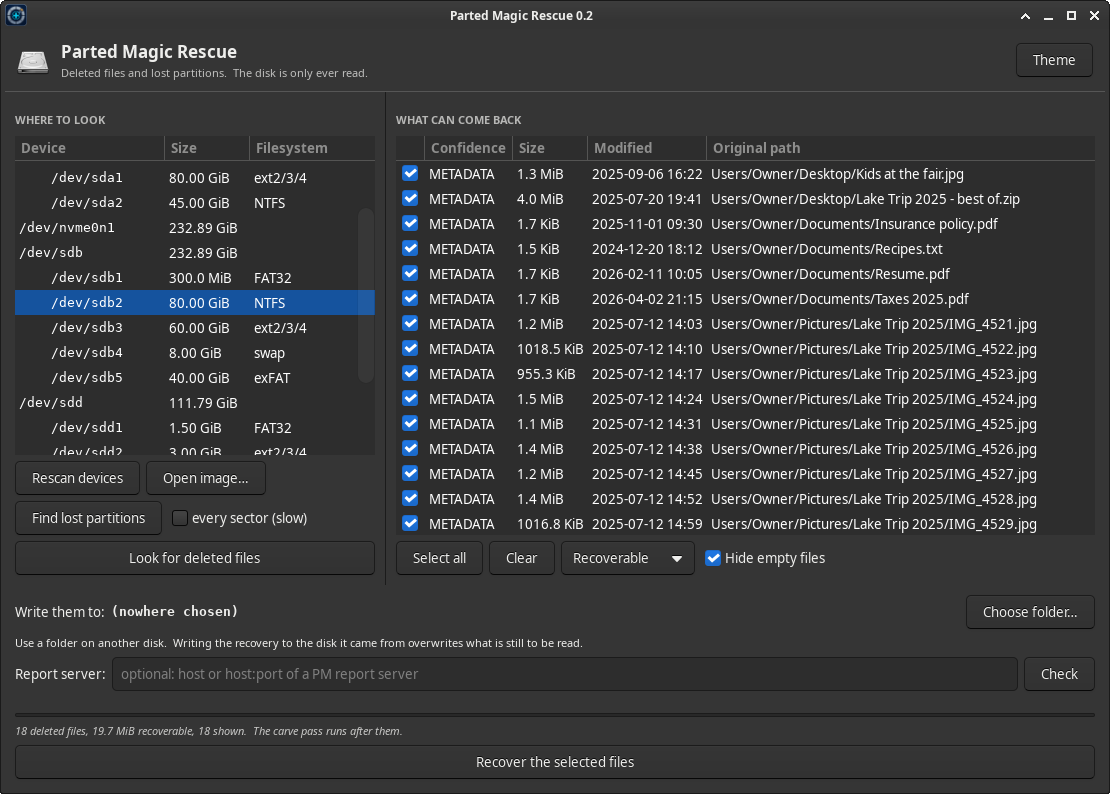
Rescue recovers deleted files and locates lost partitions, and it will never write to the disk being read. When you recover your files, they will have their original names, they will be placed within the correct folders, they will retain their original date stamps, and each recovered file will have an assigned confidence level.
This tool is included in Erase Station and can be run from the USB stick that holds all of its other tools.
On This Page
- The disk is never written
- Deleted files, with their names
- How sure it is
- The carve pass
- Lost partitions
- Encrypted volumes
- A filesystem cut short
- Where it writes, and the recovery report
- Window, terminal and command line
- Command-line reference
- What Rescue will not do
- Rescue FAQ
The Disk Is Never Written
When you’re recovering a disk, Rescue opens it as “read-only” so that it never writes to that disk. Next, put all your recovered files in a folder but do this off that disk, not even into one of that disk’s partitions, nor an LVM (Logical Volume Manager) volume, btrfs (a Linux filesystem), or a loop-mounted image that’s located on that disk. Rescue refuses such a folder: anytime you try to recover into a folder that resides on the disk you are trying to recover, the act of recovering will overwrite something that you need to recover.
And remember, once you have found out that some files are missing, stop using that disk. All actions taken after noticing files missing could potentially place data on the exact location where a deleted file still resides. You should boot Erase Station from its USB device and run everything from there.
Deleted Files, With Their Names
Rescue first examines your disk to recover files based on the filesystem’s own records. When you delete a file, many things may be left behind, including the actual file itself, and those remaining items determine which files can be recovered. These filesystem types are all read: NTFS, exFAT, FAT12/16/32, ext2, ext3 and ext4.
| Filesystem | What a deletion leaves | What comes back |
|---|---|---|
| NTFS | The file’s record keeps its name, full path, timestamps and the map of its data. | The file, exact, even when it is fragmented. NTFS-compressed files are unpacked. |
| exFAT | Deletion clears one bit per entry, and the name survives whole. | A contiguous file, which is most of them, comes back exact. |
| FAT12 / FAT16 / FAT32 | The cluster chain is zeroed, and the short name loses its first character. | The real name in full when the file had a long name (otherwise the lost character shows as ?), and the file whenever it was contiguous and its clusters are still free, which is the usual case on a camera card. |
| ext4 | The file’s map and its directory entry are both emptied, name and all. | Both are taken from the journal, whose older copies still hold the name and the map. Heavy writing after the deletion overwrites that evidence, so stop using the filesystem. |
| ext2 | There is no journal. The name survives, but not where the file was. | The file is named but not located, and left to the carve pass. |
On ext4, when a partition has been cleanly unmounted, the journal says it is empty, but each block of the journal is still present; thus the blocks are read one at a time rather than followed from the beginning. The name of a file is matched with the version of the file from when that name existed; therefore, if a file is renamed and then deleted, it will appear once, under the name it had when it was deleted.
Files with no name
A file identified by mft-NNNNNNNN is the opposite of this situation: when it was deleted, its name was erased, leaving all else intact. Therefore, its contents, its size and its timestamps remain unaltered. Rescue will add the correct extension to the file based upon the actual type of file it contains (e.g., mft-00000031.jpg for a photograph).
This occurs frequently. In contrast to how Windows and Linux (with ntfs-3g) preserve the name of each file during deletion, the NTFS kernel driver used in Linux will delete the name of each file; therefore, depending upon which driver performed the deletion, a user may or may not get the file names back, but they will be able to access the files either way. When using --index-names on a volume Windows deleted from, a lost filename can also be located by examining the index of the directory that contained the file.
How Sure It Is
Every file is listed with a confidence grade:
| Grade | What it means |
|---|---|
| METADATA | Located from surviving metadata, with every cluster verified still free: nothing has taken the file’s space. If the drive then fails to read part of it while it is written out, it drops to PARTIAL, and the manifest says how much is missing. |
| PARTIAL | Located, but some of its space was used again, part of its map is missing, the drive would not read it, or part of it lies past the end of a filesystem cut short. The manifest names what is wrong with each one. |
| UNREADABLE | Found, but the content cannot be produced: Windows EFS encryption, whose key is in the Windows user’s profile, a file that lies wholly past the end of a filesystem cut short, or a file deleted before any of it was written to the disk. |
| NOMETA | Found by name only; where its data was did not survive. The carve pass is what reaches these. |
| ZEROED | Every byte reads back as zero. On an SSD, Windows asks the drive to discard a deleted file’s space (TRIM), and it reads as zeros from then on. Nothing of the file is left, so nothing is written, and the manifest says so. |
Two deleted files may occupy the same space, and the one written most recently occupies it. When the files’ own times show which one that was, it is graded on its merits, and the other is told which file overwrote it. When neither file’s times show it, both files are classified as PARTIAL.
When using FAT, deleting a file removes the cluster chain for the file. Therefore, if a file is larger than one cluster, it is presumed to be in one piece and will remain PARTIAL until something shows that it was. Each file written has its own format examined. If a file’s format is JPEG, PNG, GIF, ZIP (and all formats based upon it), PDF or gzip whose end is found in its final cluster, or MP4 or MOV whose structure runs to its final cluster, then it was in one piece and is recorded as METADATA. Formats that do not have an end to locate (TIFF and camera raws, WAV, AVI, plain text) remain PARTIAL, with that reason.
The Carve Pass
After the files the filesystem still remembers, the carve process identifies the remaining files from their own bytes, with no name to go on, in free space as well as in areas of the disk that are currently marked “in-use” but that nothing points to any more (i.e. what is left after all of the files in a directory have been wiped). The carve process skips any files already identified by name, because those were recovered first; this greatly speeds up the overall process and prevents a nameless second copy of a file that came back with its name.
When a format states its own length, that length determines how much data is extracted: PNG, GIF, ZIP and its whole family, RIFF, MOV/MP4/HEIC, BMP, SQLite, gzip, 7z, PDF, TIFF and its raw descendants, and JPEG by its end marker. If a format does not state its length, extraction continues until either another file begins or a pre-determined maximum size has been reached, and the manifest says so.
The naming of carved files comes directly from what they contain; therefore, a photo will be named with the date it was taken, a PDF will be named with the date it was made, and a zip file will be named based upon what it actually is (.docx, .xlsx, .odt, .apk, .epub) as determined through the list of contents within the zip. All items are hashed according to their content. Therefore, the same bytes cannot be written to disk twice.
When there are no remaining deleted names for a memory card that has been formatted, the “carve” pass is how its photos come back. It is automatically offered from both the window view and the terminal view when nothing is listed. The --raw option tells Rescue to ignore the file system completely and carve the entire device when the header or partition table for a given volume does not exist.
Lost Partitions
NTFS, exFAT, FAT, and ext each provide the size of a partition within their respective headers; therefore, when you read a correct header, you can determine a partition’s beginning and ending. Each find will then be compared to a backup of itself (NTFS’s backup boot sector, exFAT’s backup boot region, FAT32’s backup sector, ext’s backup superblock), and if the find and its backup copy match, it will be reported as confirmed.
It searches for data at 1 MiB boundaries, which is what most current operating systems use to begin their partitions. If the window’s every sector (slow) box or --deep has been selected, it searches through every sector, and this tool will also locate a partition from an older tool, which was created by aligning to cylinders, and will read the entire disk.
The safest approach to using the results is simply not to make a table. Any partition that Rescue finds can have its files recovered from the original location of the data without making any changes to the original disk:
rescue partitions /dev/sdX                        # where the lost partitions are
rescue scan /dev/sdX --at START                   # read one where it lies
rescue recover /dev/sdX --at START --out DIR      # and recover its files
To put the partitions back into the table, Find lost partitions within the window will provide the option Put back with VisParted. Select all of your findings that you want restored. Any confirmed finding will have been automatically selected. A finding with only a header will be provided as a selection option but will not be selected by default because this could be left over from a previous configuration. Once you have made your selections, VisParted will open displaying the plan (which is where you confirm them). If there is a disk without a table then it will ask whether to use GPT or MBR, with nothing chosen for you.
VisParted will write to the table (which contains the locations for all partitions) but write no data into those locations. Its “plan” reads from the file system at each location to verify that it matches what was located there during the initial read, and refuses if it does not; it also hashes the first and last megabyte of each location during creation of the plan, then again prior to making any changes, and once again after. The entries in the table for any remaining valid partition will remain in the table by their number; therefore, if you have a table with four partitions that loses an entry, it will get that entry back and retain the other three.
Before anything touches a disk, a table backup by rescue table-backup saves the first and last megabytes of the disk, the table as JSON, and how the table was laid out, in the form VisParted reads. Therefore you may restore the saved table and never have to write inside any of your partitions.
Encrypted Volumes
A BitLocker or LUKS volume can be accessed through the “unlock” of the volume. Unlock this volume within the “Mount” window of Erase Station and select the partition itself; Rescue then accesses the data on the disk through the “unlock”, and indicates so. If a volume is locked, then it is identified and you are provided instructions on unlocking it.
The encrypted partition is read alongside the unlock. Any area that is zeros there has been discarded by the disk (drive) or never written to; if decrypted it would be noise. Therefore a file an SSD discarded is marked ZEROED rather than passing off what was left behind as identical.
A deleted file that is older than when BitLocker was turned on is reviewed twice. If you are encrypting “used space only,” then your “free space” remains intact and therefore such a file could still reside on the disk unencrypted. When you encrypt the entire volume, its free space is filled completely, and a file deleted prior to this point is gone: it is reported, but not written. Lost-partition recovery also locates BitLocker volumes (with the size recorded by BitLocker) and places them back as BitLocker volumes.
A Filesystem Cut Short
A filesystem can be larger than the device holding it: a ddrescue disk image that was interrupted before completion, a drive inside an enclosure which reports having less storage than it actually has, a filesystem larger than the partition on which it resides. The rescue process will read the contents for what exists, and report on what does not exist. If a file lies wholly beyond the end of the device, then the filename and size are reported along with UNREADABLE to indicate no data. Files extending past the end of the device appear PARTIAL (with all remaining bytes filled with zeros), and the recovery manifest indicates the number of bytes that do not exist at the end.
Where It Writes, and the Recovery Report
Each file is named temporarily when created; files are renamed to their permanent names when they are completed. A run that stops or a destination that is full will not leave an unfinished (cut off) file appearing as if it was finished. Files currently in the folder cannot be overwritten by this program. If the program attempts to create a file with a name already used, it creates a numbered (e.g., “file (1)”, “file (2)”) version of that file name. If there is a file in the folder with the same exact bytes (i.e., no changes were made), then that file will be skipped over, so a new run after the destination filled up will continue where the last one left off. Because this program streams data instead of holding all of the data in memory at once, files can be processed even if they exceed the amount of memory available on your computer.
A manifest is created in real-time as the recovery occurs. Beside this manifest, there will be an associated recovery report which contains the source by model and serial, the filesystem, what was asked for, and every file found: where it came from, how sure Rescue is that it is correct, a SHA-256 checksum of what was written, and for each file not recovered, why. It is this recovery report listing that lets the customer know when their recovery is complete. Because the ID of the recovery report is based on a hash of its content, if anything has been modified or added after creation, then the ID will no longer match and therefore rescue report check will indicate so.
If you have a PM Report Server running in your local network, once the recovery process is completed, the report will be forwarded to this server, and it will add its own digital signature next to the report as confirmation of receipt. If you do not have a PM Report Server available at the time of recovery, the recovery will continue: the report will still remain next to the manifest, but will be transmitted later. The server address for all of these programs (Rescue, Erase, Clone, VisParted) is set up in a single place.
Window, Terminal and Command Line
A window version, a terminal version and a command line exist. Each reads disks, partitions and disk images. No X and no display of any kind is required for the terminal version; you can run it over serial-over-LAN or on a server whose video is dead. It offers the same lost partition finder, which searches in real-time: it displays each possible find as it comes up, s will stop it and keep what it found, Enter allows you to read a find where it is, and p puts finds back.
Rescue Command-Line Reference
rescue gui                                   # the window
rescue tui [DEVICE]                          # the terminal face
rescue scan DEVICE                           # what is there and what could come back
rescue list DEVICE [--json]                  # every deleted file still named
rescue recover DEVICE --out DIR              # write them out
rescue partitions DEVICE [--deep]            # search for lost partitions
rescue table-backup DEVICE --out DIR         # save the table area first
rescue report check FILE                     # does a report still match itself
rescue report send FILE                      # send a report that did not go
rescue report sync DIR                       # send every unsent report in a folder
rescue report probe                          # is the report server there
rescue manual                                # the whole manual
DEVICE is a disk, a partition, or an image file. scan, list, recover and tui take --at BYTES to open a filesystem that starts there, which is how the files of a lost partition are read without writing a table. For recover: --only-intact keeps only files still METADATA once read, --match REGEX picks by path, --no-carve skips the carve pass, --raw carves the whole device, and --limit refuses a single file bigger than 16 GiB unless told otherwise. partitions --spec FILE writes the layout VisParted puts back.
What Rescue Will Not Do
- Write to the disk being recovered, ever.
- Write a partition table itself. Putting partitions back is VisParted’s job, in a plan you confirm.
- Rebuild a boot sector from its backup. That is VisParted’s Repair.
- Decrypt files Windows encrypted with EFS: their key is in the Windows user’s profile.
- Unlock an encrypted volume itself. The Mount window does that, with the password or key, and Rescue reads through what it opens.
Rescue FAQ
I just deleted something. What should I do first?
Stop using that disk. Every file you save, every update and browser cache can land on the space that a deleted file still occupies. Do not install anything on it. Boot Erase Station from the USB stick instead of the disk, and recover to a different disk.
Why did my files come back as zeros?
This is an SSD, and it discarded them. When you delete a file, Windows sends the signal to the SSD that its space is free (TRIM), and thus after this the space reads as zeros. No software can restore these files. Rescue marks them ZEROED and does not write empty copies.
Can it recover photos from a memory card I formatted?
Yes, as long as they haven’t been overwritten. A formatted card doesn’t have any deleted file names left, so the carve pass identifies images based on their contents, and assigns a name to each one based on when the image was taken.
Does it write anything to the disk I am recovering from?
No. Your disk is opened in read-only mode, and Rescue will not allow you to select a destination folder located on it. This step of putting lost partitions back into the partition table is an additional step, and performed using VisParted. It writes solely to the table entries; it does not write to any other part of the media, and does this only after you’ve reviewed and accepted the plan made by VisParted.
Does it need the internet or an account?
No. Rescue runs off-line. The PM Report Server is also optional, and would reside on your own network.
Get Erase Station Rescue
Rescue can be run from within Erase Station, along with VisParted, Clone and Secure Erase. They are included in your one price for unlimited disks and unlimited computers. There will be no charge for each machine or each drive.