
The SHA-256 checksum of your download is shown under its download link in your receipt email and in your account. Checking it takes about a minute. A match tells you the ISO arrived complete and unchanged. Check it before you write the ISO to a USB drive or a DVD. For a release before 26.11_2, look for its checksum in the notes on your receipt.
A checksum is a long string of letters and numbers worked out from every byte of a file. Change one byte of the ISO and the checksum changes. If the checksum your computer works out is the same as the one shown with your download, your copy is good.
In the commands below, replace pmagic.iso with the name of the file you downloaded. If you downloaded both the PC and the ARM ISO, check each one against the checksum under its link.
Windows
PowerShell (Windows 10 and 11)
PowerShell comes with Windows. Right-click the Start button, open Terminal or Windows PowerShell, and run:
cd $env:USERPROFILE\Downloads
Get-FileHash .\pmagic.iso -Algorithm SHA256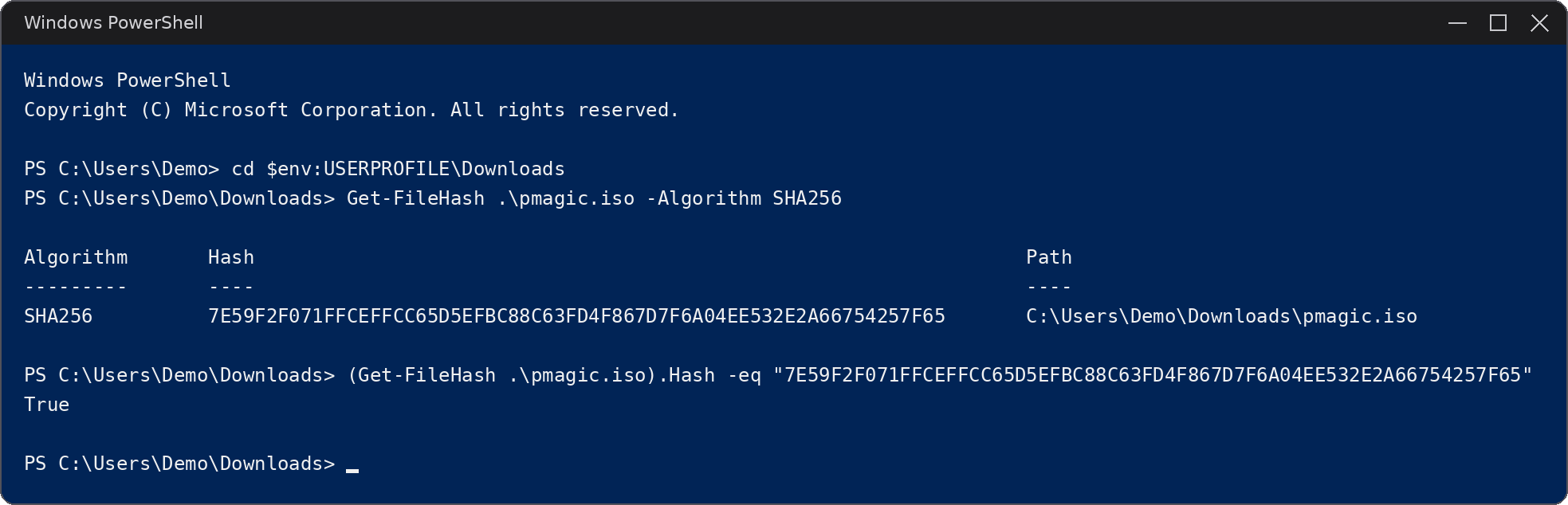
The checksum is in the Hash column. PowerShell can also compare it for you. Paste the checksum shown with your download between the quotes, and the line prints True when the two match:
(Get-FileHash .\pmagic.iso).Hash -eq "PASTE-THE-CHECKSUM-HERE"Command Prompt
The certutil command works in Windows 7 and later:
certutil -hashfile "%USERPROFILE%\Downloads\pmagic.iso" SHA256Old versions of certutil print a space between each pair of characters. Ignore the spaces when you compare.
macOS
Open Terminal. It is in the Utilities folder inside Applications. Then run:
shasum -a 256 ~/Downloads/pmagic.iso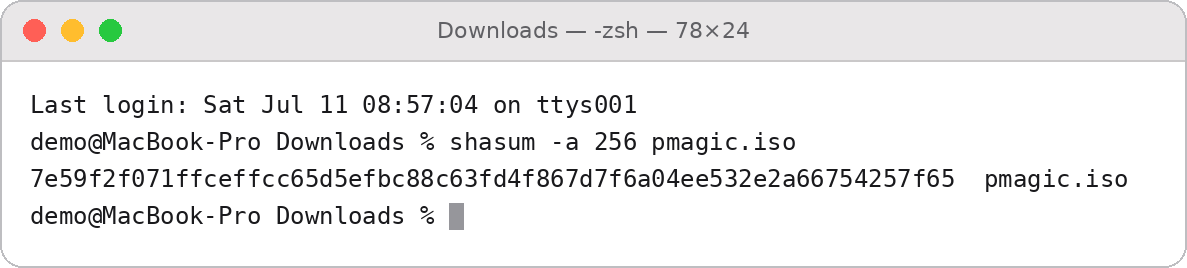
To have your Mac compare the checksum for you, run these two lines. Inside the quotes, put the checksum shown with your download, two spaces, and the file name:
cd ~/Downloads
echo "PASTE-THE-CHECKSUM-HERE  pmagic.iso" | shasum -a 256 -c
pmagic.iso: OK means it matches.
Linux
Linux systems come with sha256sum. Open a terminal and run:
sha256sum ~/Downloads/pmagic.iso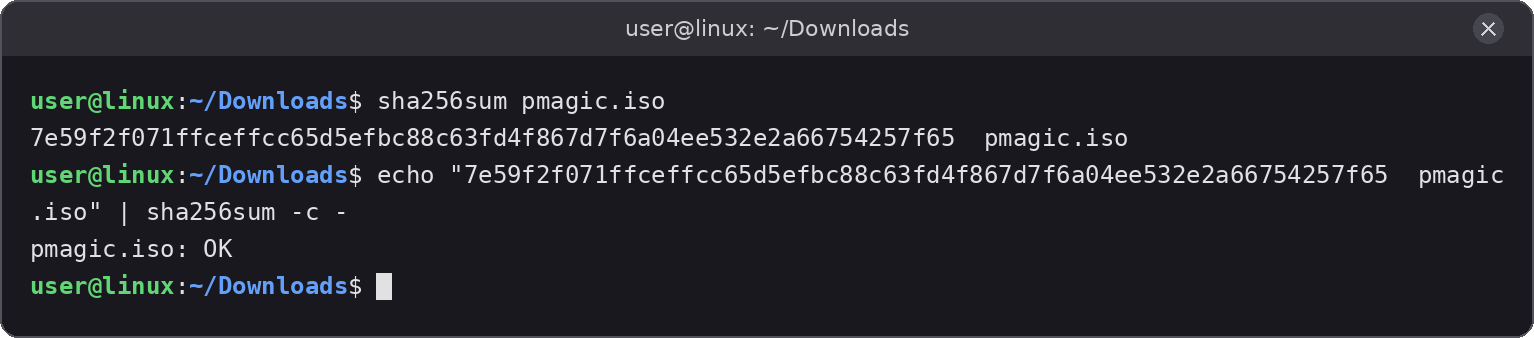
To compare it automatically, again with two spaces between the checksum and the file name:
cd ~/Downloads
echo "PASTE-THE-CHECKSUM-HERE  pmagic.iso" | sha256sum -c -
pmagic.iso: OK means it matches.
Comparing the Checksum
A checksum uses the numbers 0 to 9 and the letters a to f. Capital and small letters count as the same, so A1B2 and a1b2 match. Compare every character, from the first to the last.
The easy way: copy the checksum your computer printed, open your account, press Ctrl+F (Command+F on a Mac) and paste. If your browser highlights the checksum in your account, they match.
Signatures on Older Releases
Releases from 26.11_2 on are not signed and have no .asc file. Some earlier releases came with a signature: the small file next to the ISO in your account, with the same name and .asc at the end. The checksum shows the file is complete. The signature shows it came from us. Checking it is optional.
You need GnuPG. Linux systems usually have it. On Windows, install Gpg4win, and on a Mac, install GnuPG first. In the folder that holds both files, run these two commands with your own file names:
gpg --fetch-keys https://erasestation.com/store/GPG-KEY
gpg --verify pmagic.iso.asc pmagic.iso
A good ISO shows Good signature from "Patrick Verner <sales@partedmagic.com>". GnuPG then warns that the key is not certified with a trusted signature. That only means you have not certified our key yourself. What matters is the fingerprint it prints, which must be F674 69C6 8A0B 8FC1 70B2 B1B5 6C49 227C 1EBA 24AD.
If the Checksums Do Not Match
- Download the ISO again. A download that stopped partway is the most common cause.
- Make sure you checked the finished ISO. A file ending in .part or .crdownload is a download that has not finished.
- Look at the file size. A download that stopped early leaves a file smaller than the full ISO.
- Try a different browser, or turn off any download manager.
- If a new download still does not match, do not write it to a drive. Contact us with the checksum you got.
Checking a USB Drive After Writing
The checksum shown with your download is for the ISO file. A USB drive holds more than the ISO, so a checksum of the whole drive will not match.
The Erase Station USB Installer checks the drive for you. When it finishes writing, it reads every file back from the drive and compares it with the ISO. The installation guide shows how to use it.
On Linux, you can check a drive written with dd or balenaEtcher. Those copy the ISO to the start of the drive, so a checksum of that many bytes matches the ISO. Replace /dev/sdX with your drive:
sudo head -c "$(stat -c %s pmagic.iso)" /dev/sdX | sha256sumRufus in ISO Image mode copies the files out of the ISO onto the drive, so this check does not apply to it. With Ventoy, the ISO sits on the drive as an ordinary file. Check that file the same way you checked the download.
Quick Reference
Windows (PowerShell):      Get-FileHash .\pmagic.iso -Algorithm SHA256
Windows (Command Prompt):  certutil -hashfile pmagic.iso SHA256
macOS:                     shasum -a 256 pmagic.iso
Linux:                     sha256sum pmagic.iso